
Writing & editing recipes
Import isn’t the only way in. Type a recipe straight from a card in your own handwriting, fix a line the parser misread, and understand what FoodGenie is actually doing when it turns “2 lb chicken breast halves” into something your kitchen can check against.
Write one by hand
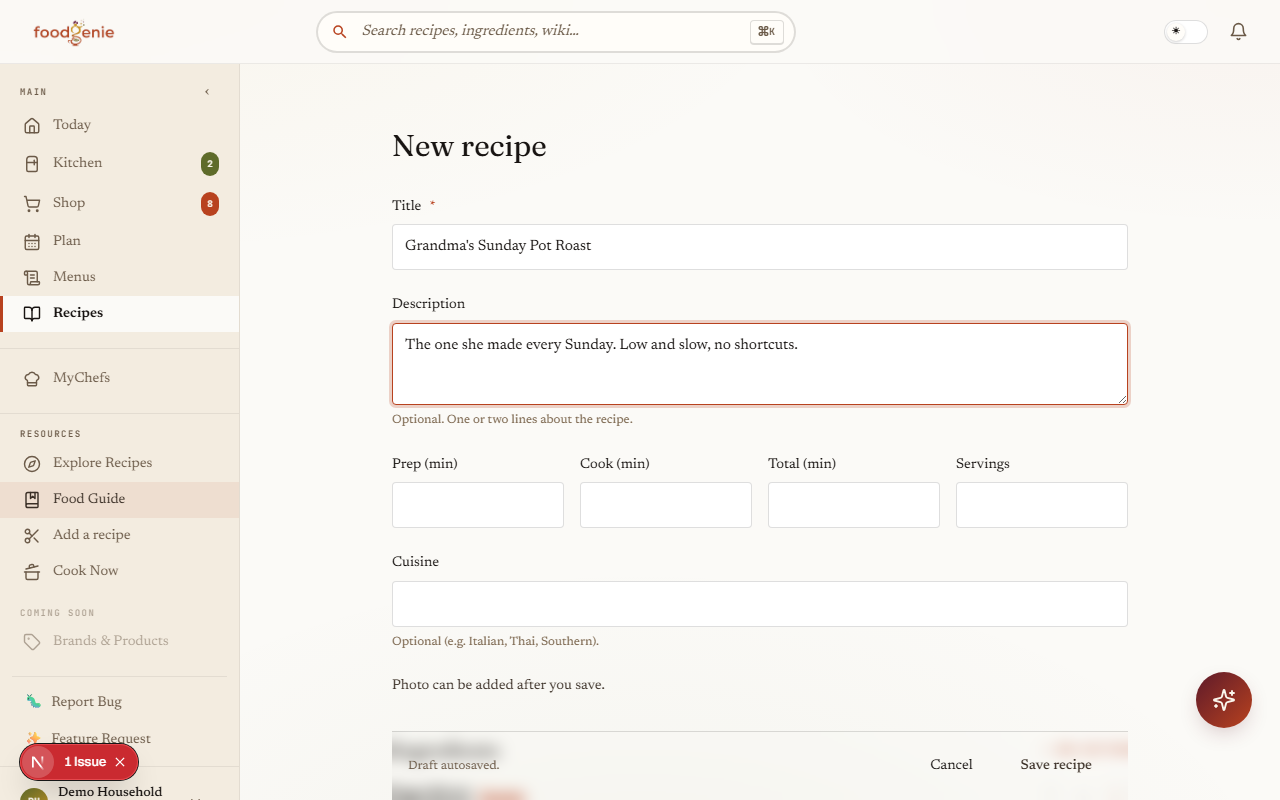
Some recipes have no URL to clip. A card in your grandmother’s handwriting, a method you worked out yourself, a dish someone told you over the phone — those get typed in. “Add a recipe” in the sidebar leads to both paths; this is the one that starts from a blank page.
Only the title is truly required. Prep and cook time, servings, and cuisine are all optional, and a photo can wait until after you save.
Ingredient lines
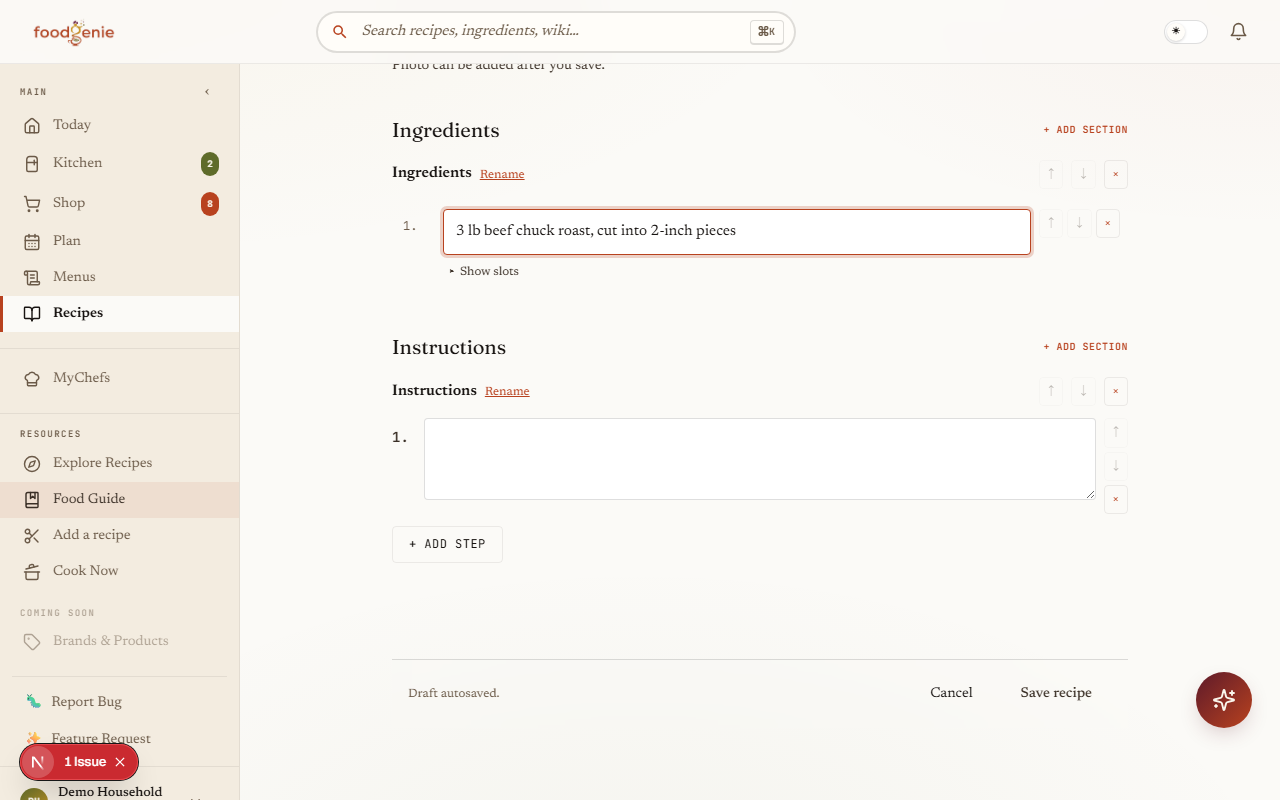
This is the part that surprises people, and it’s deliberate: you type the whole line as one piece of text. There are no separate boxes for amount, unit and food. Write it exactly as you’d write it on paper —
- 3 lb beef chuck roast, cut into 2-inch pieces
- 2 tablespoons olive oil, divided
- 1 (14.5 oz) can crushed tomatoes
- a big handful of parsley
— and FoodGenie takes it apart for you. Ingredients can be grouped into named sections (“For the marinade,” “For the sauce”) with + Add section, and rows reorder with the arrows beside them.
How parsing works
“Parsing” is FoodGenie reading one written line and working out its parts: how much, in what unit, of which food, prepared how. It happens on the server, on save, for every ingredient line — whether you typed it or imported it.
A line is broken into eleven slots. The ones that matter most day to day are Qty, Unit and Name; the rest capture the detail that decides which food a line really means:
Qty and Qty (max)
The amount — two slots, so a range like “2–3 cloves” keeps both ends instead of being rounded to one number.Unit and Size
Tablespoons, cloves, cans, bags. Size carries the packaging detail, like the “14.5 oz” of a can.Name, Type and Brand
The food itself. Type is the qualifier that changes what it is — “ground” beef, “smoked” paprika — and Brand is for when a recipe genuinely calls for one.Pre1 / Pre2 / Pre3 and Post-prep
Preparation words, split by where they sat in the line. “Chopped” before the food and “, divided” after it are both preparation, not identity.
Most lines are handled by a fast, deterministic parser that has learned FoodGenie’s vocabulary of units, sizes and prep words — no AI involved, same answer every time. A minority of lines get a second, smarter pass, and only for specific reasons:
The first pass wasn’t confident
An unusual phrasing the vocabulary doesn’t cleanly cover.The line offers an alternative
Words like “or”, “preferably”, or “if possible” — “butter, or ghee if possible” is two options, and that’s worth reading properly. Substitutes found this way become real substitution suggestions later.A word changes which food it is
“Ground beef” is not “beef”; “fresh thyme” is not “dried thyme”. Words like these trigger the second pass even when the first pass was confident, because getting them wrong means matching your kitchen against the wrong food.
Fixing a parse
Parsers get things wrong. When one does, you don’t have to live with it — and you don’t have to re-type the line either. Every ingredient row in the editor has a Show slots link that opens the parse itself, field by field, ready to correct.
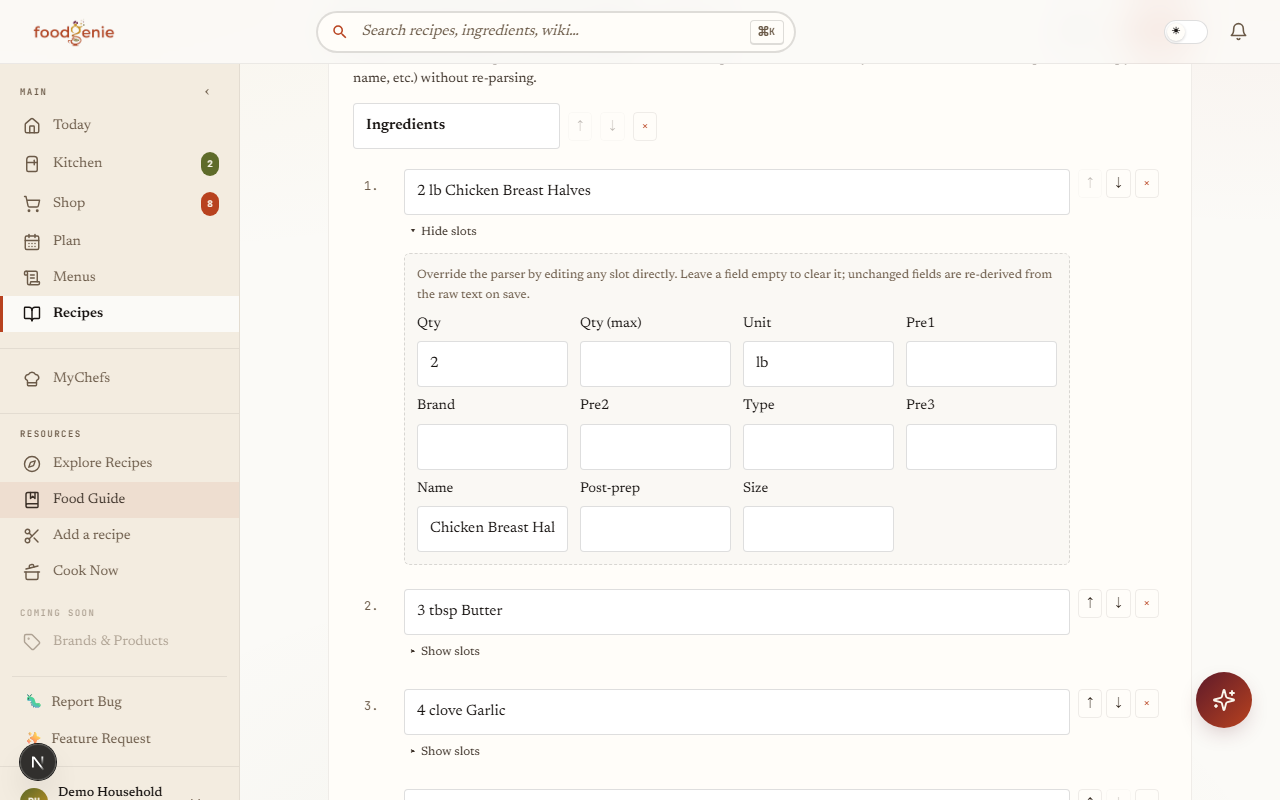
There are two different repairs, and it’s worth knowing which one you want:
Fix the words — edit the raw line
Change the text itself and the parser runs again from scratch on save. Use this when the line was typed or imported wrong.Fix the reading — edit a slot
Leave the line alone and correct the field that came out wrong. Use this when the text is right but the parser split it badly.
Editing a recipe
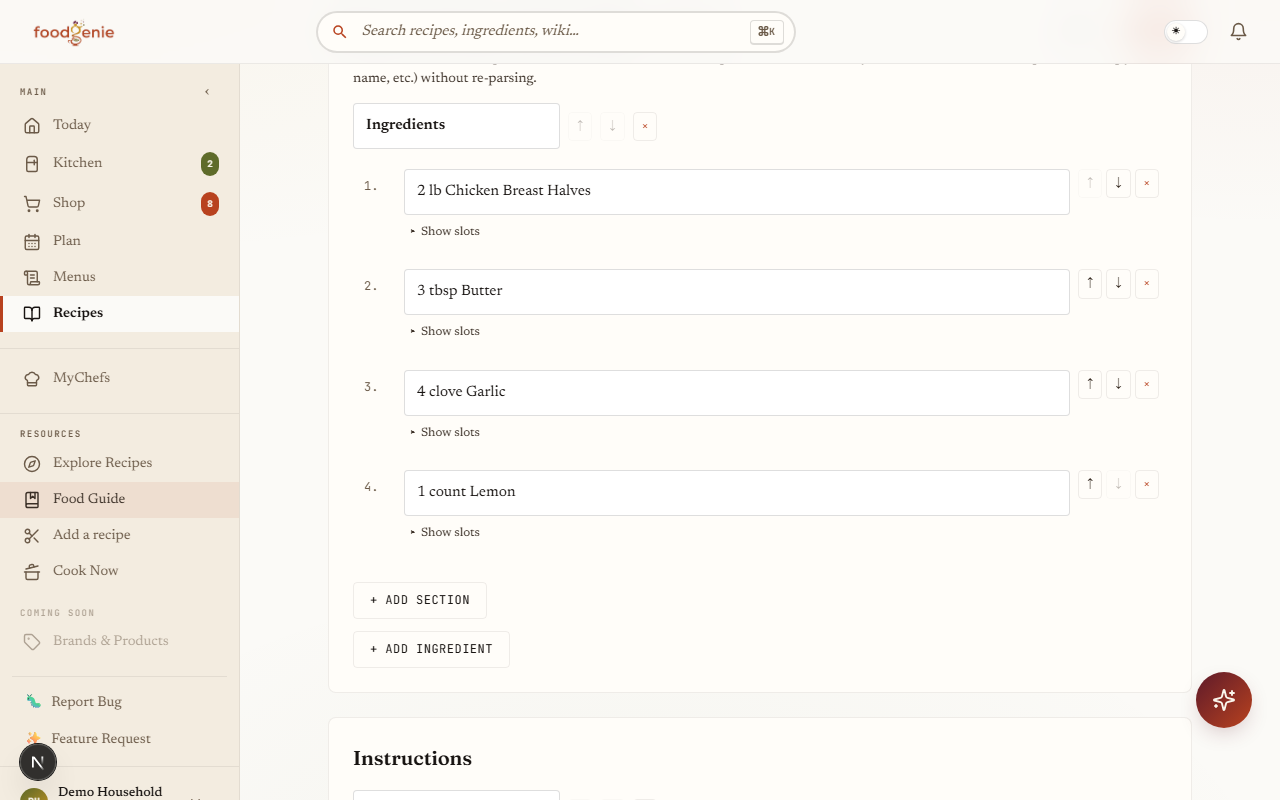
Any recipe you created has Edit recipe in its actions panel. The editor covers everything: title and description, times and servings, cuisine, dietary tags, the photo, ingredient sections and rows, and instruction steps.
Only yours are editable
You can edit recipes you created. Someone else’s recipe has no edit button for you — including a household member’s, and including a public one you can otherwise read and cook.Imported recipes edit the same way
A clipped recipe is a normal recipe once it’s saved. Fixing an import months later uses this exact editor, slots and all.
What the parse powers
All of this exists for one reason: a recipe that’s only text can be read, but a recipe that’s been understood can be used. Once a line is parsed and linked to a known food, four things start working:
The pantry check on the recipe
“Ready to cook!”, “Almost ready to cook”, or “Missing ingredients”, with a count — computed by matching each parsed line against your kitchen.Cook Now
Your whole library ranked by how much of each recipe you already have.A shopping list that subtracts
Building a list from your plan adds only what you’re missing, at the right quantity — and each row remembers which recipe wanted it.Substitutions
Swap suggestions need to know the food, not the sentence. Alternatives written into the line itself (“butter, or ghee”) are picked up here too.
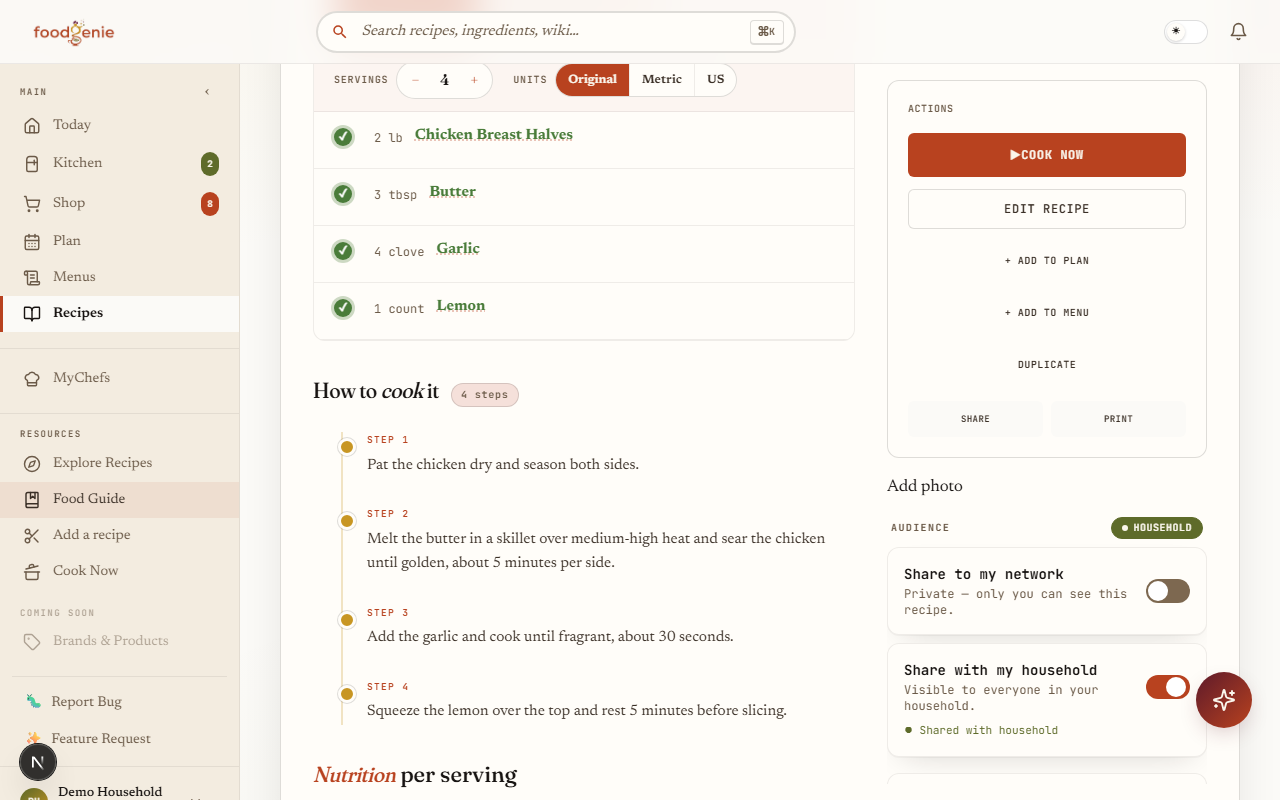
That’s the same line from the other end: quantity and unit separated from the food, the food name linked through to its Food Guide entry, and a mark showing whether your kitchen already has it. Which is why a wrong slot is worth the thirty seconds it takes to fix — one bad Name field is the difference between a recipe you can cook tonight and one that looks like a shopping trip.
Was this page helpful?