
RecipeClipper
Every way in, why every import stops for a quick review before it saves, and how to fix the odd line that parses wrong.
Five ways in
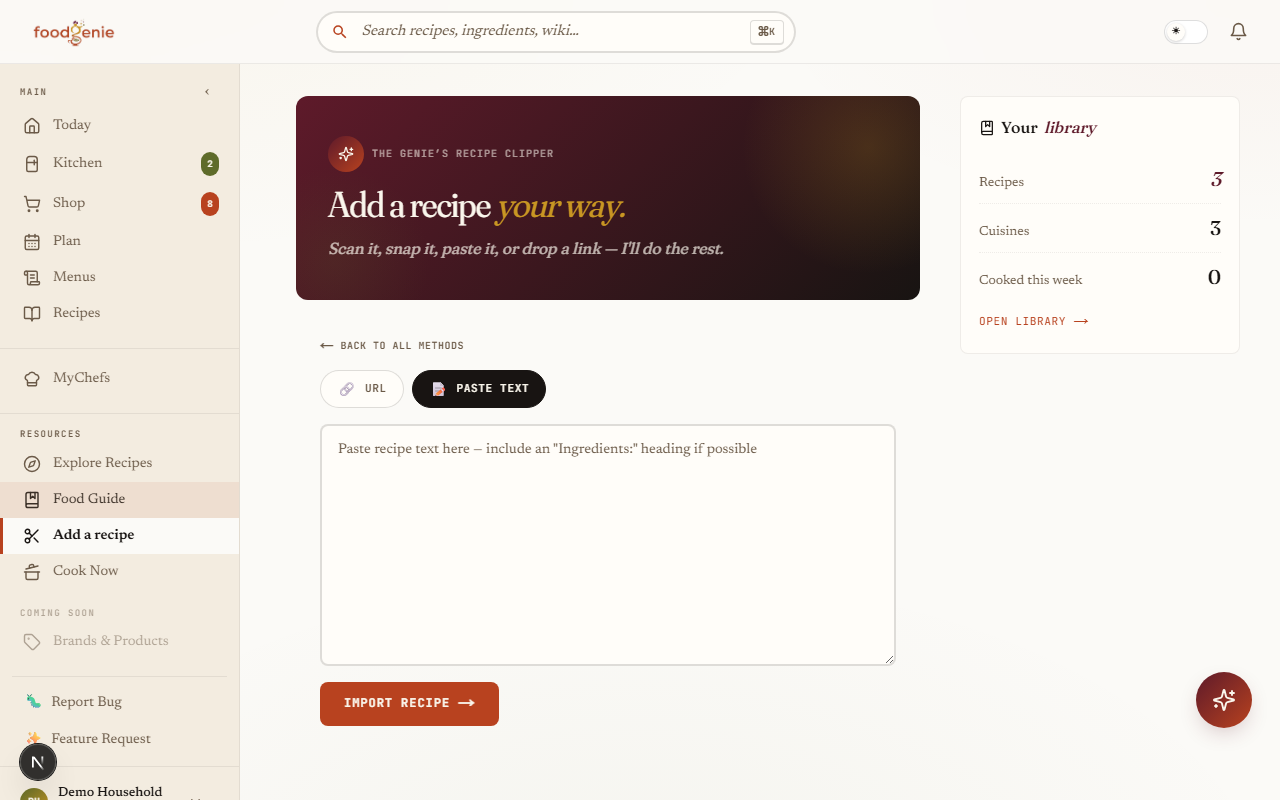
Open the Recipe Clipper and you’ll see five tiles — pick whichever matches what you’re starting from:
Scan a recipe
Photograph a printed recipe with your camera.Upload a recipe
Pick one or more photos from your gallery.From a URL
Paste a link from a recipe blog or site.Paste text
Copy a recipe from anywhere and paste it in.Import several
Paste multiple recipe URLs and import them all at once.
Not importing anything? A “Create a recipe from scratch” link sits just below the tiles for building one by hand — title, ingredients, steps, photo. Writing & editing recipes (guide 13) covers that path in full, along with how to fix an ingredient line the parser read wrong.
Why every import gets reviewed
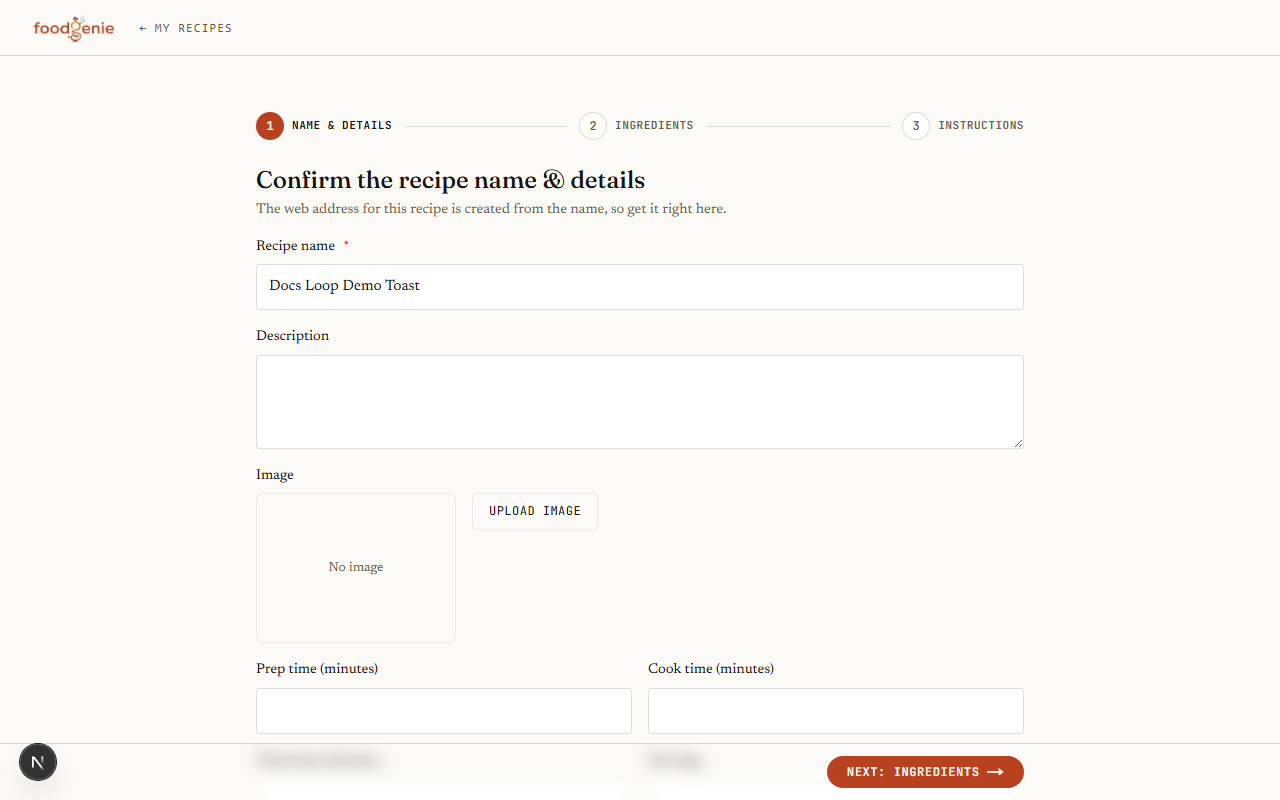
An import is never live the moment it’s parsed. It’s saved as a draft — nothing you or anyone else can see in your recipe book yet — until you step through a short 3-part review and publish it: name & details, ingredients, then instructions. Publishing is what makes it real.
Fixing a parse
Every ingredient line gets broken into up to nine parts — quantity, unit, a couple of descriptors, brand, type, the ingredient name itself, and a prep note. Tap a line below to see how it splits:
Tap a line to see how it parses
- Quantity
- 2
- Up to (max qty)
- —
- Unit
- cup
- Size
- —
- Descriptor
- —
- Brand
- —
- Descriptor
- —
- Type
- all-purpose
- Descriptor
- —
- Ingredient
- flour
- Prep note
- plus more for dusting
The review wizard’s ingredients step flags anything it’s unsure about, and gives you a few ways to fix it:
Edit a line inline
Adjust the quantity, unit, or ingredient name FoodGenie guessed, right on the spot.Add a missed ingredient
Use "+ Add ingredient" for anything the parser skipped entirely.Move a misfiled line
Send a line that landed in the wrong place over to Instructions with one action.Re-parse from scratch
For a rougher parse, the resegment tool lets you assign every line to a group — Ingredients, Steps, Info, or Ignore — then re-parse the recipe with that map.
Multi-section recipes
A recipe with a sauce, a crust, and a filling doesn’t get flattened into one undifferentiated list. Once a recipe has more than one ingredient section, the review step shows a section selector on every row, so “2 cups flour” can stay filed under “Crust” and not get confused with the filling’s flour.
What to expect
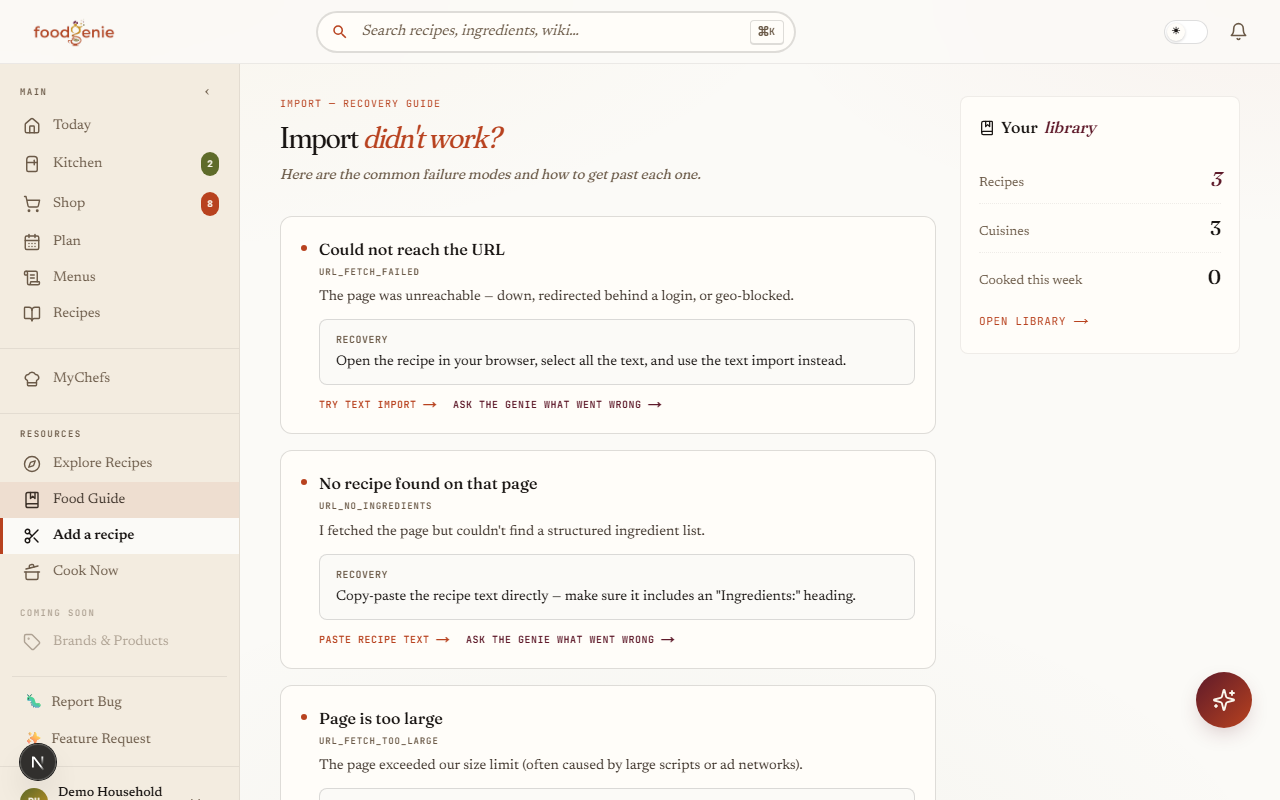
URL imports work best on plain, structured recipe pages. Here’s the honest split, straight from the import screen itself:
What I read well
- NYT Cooking, Serious Eats, AllRecipes, Epicurious
- Plain recipe blog posts with ingredient lists
- Substack and Beehiiv recipe issues
- Photos of printed cookbook pages
What still beats me
- Paywalled pages (NYT paywall, WaPo, etc.)
- PDF files
- Social media posts (Instagram, TikTok)
- Pages with very complex JS rendering
Was this page helpful?