
MyMenus
Named, reusable menus built from your recipe library — restaurant-style, sections and all — and how they hand off to the week you actually plan.
Menus vs. plans
A menu is a named, reusable document — think a restaurant’s printed menu, built from your own recipe library. It doesn’t expire and it isn’t tied to a date. A plan (the Meal Planner, guide 4) is the opposite: a week’s calendar, slot by slot. Menus are where you curate; plans are where you commit to a week.
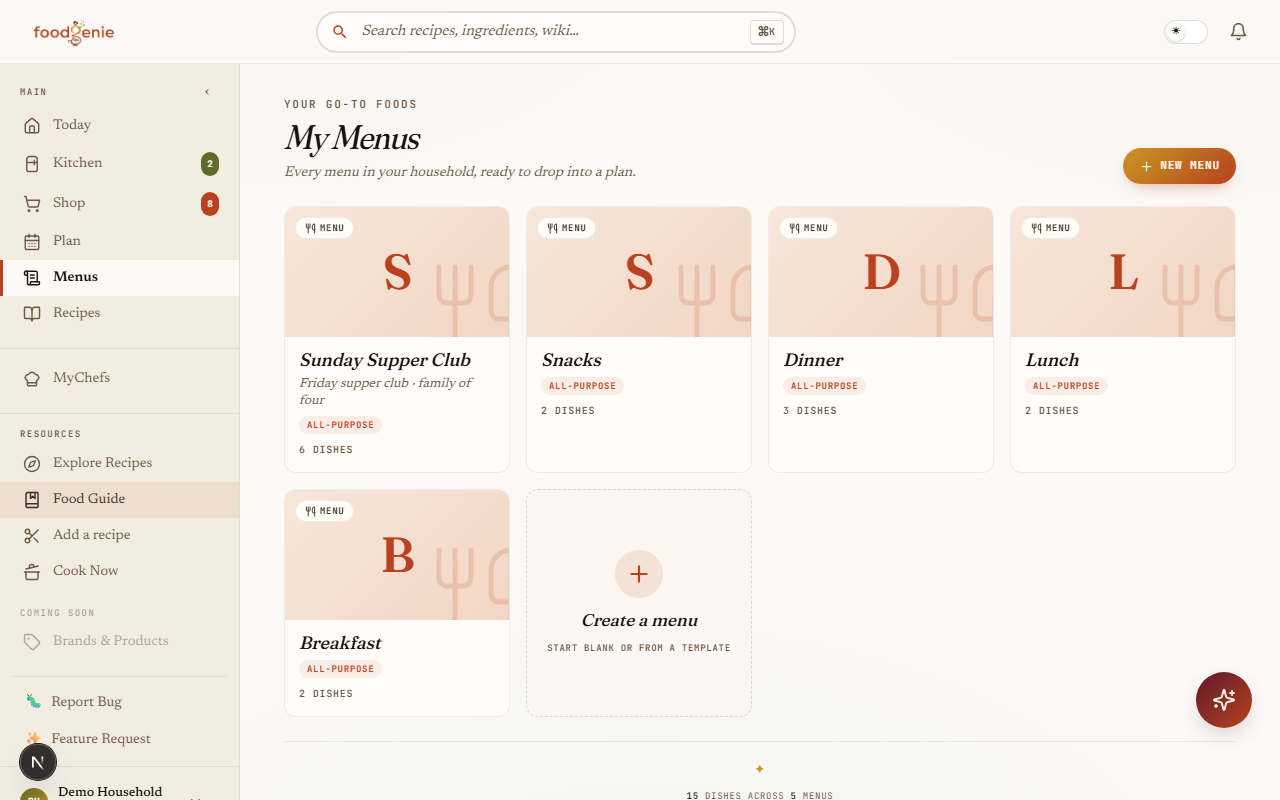
Every household starts with four permanent menus — Breakfast, Lunch, Dinner, and Snacks — ready to fill in.
Sections & dishes
Inside a menu, dishes live in named sections you control — “Mains,” “Desserts,” whatever fits. A dish itself is one of three things: a recipe from your library, a bare food from the Food Guide (no recipe needed — just an ingredient, like “fresh strawberries”), or a free-text note for anything that isn’t either.
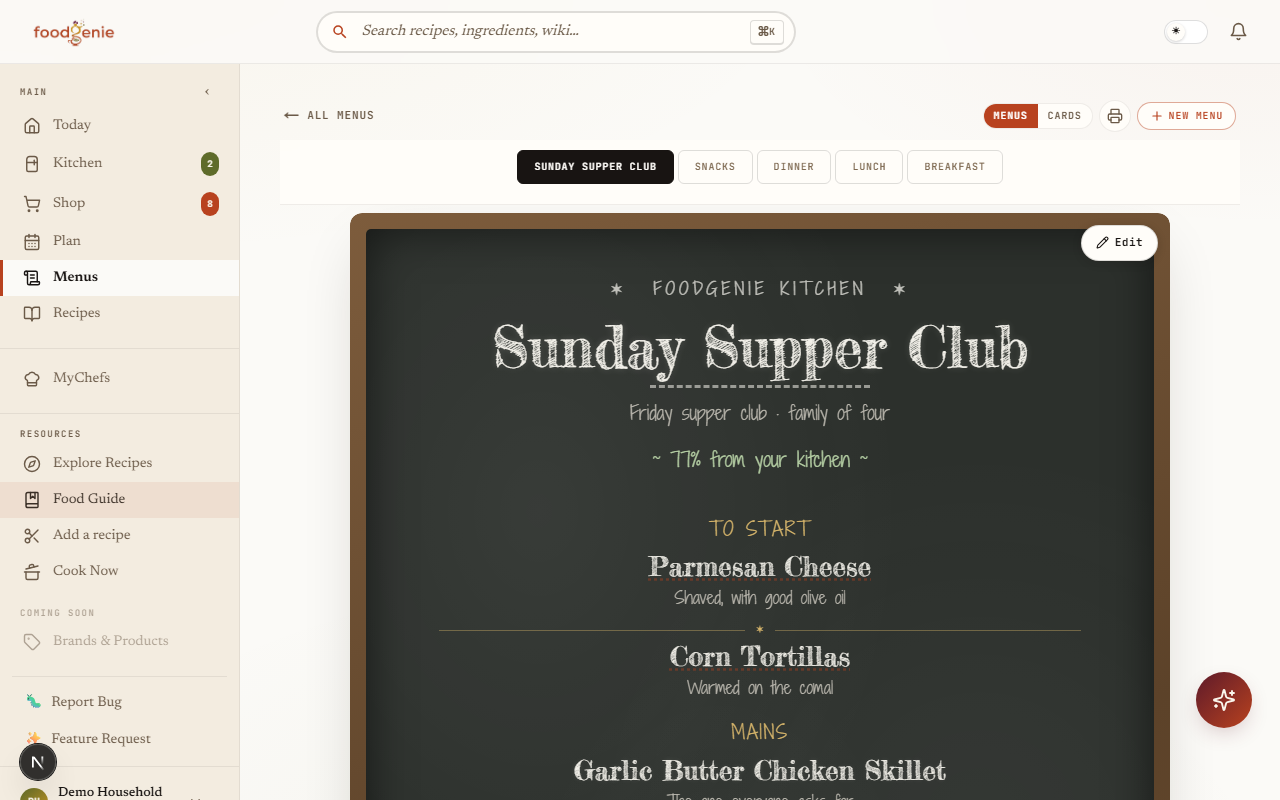
That’s a real menu, in one of the twenty designs — the same page its section on designs below describes. Note the line under the title: FoodGenie scores the whole menu against your kitchen, so a menu tells you how much of itself you could already cook tonight.
Edit mode
Only the menu’s owner — whoever created it — sees an “Edit menu” button. Tap it and the whole page becomes a live editor: rename or reorder sections, add or remove dishes, delete a section. Tap “Done editing” and it’s read-only again for everyone, owner included.
Everyone else sees a clean menu
Other household members can open recipes and browse the menu like any reader — no add, remove, or reorder controls ever appear for them.Reading a recipe always works
Tapping into a recipe from a menu is normal navigation, in or out of edit mode — "read-only" describes the dish list’s own controls, not the recipes themselves.
“View as” designs
Once you’re editing, a “Design” dropdown lets you present the same menu as one of twenty restaurant-style layouts — a chalkboard bistro board, a diner menu, a newspaper broadsheet, a scrapbook pinboard, and more — plus the plain white “List” layout menus start with.
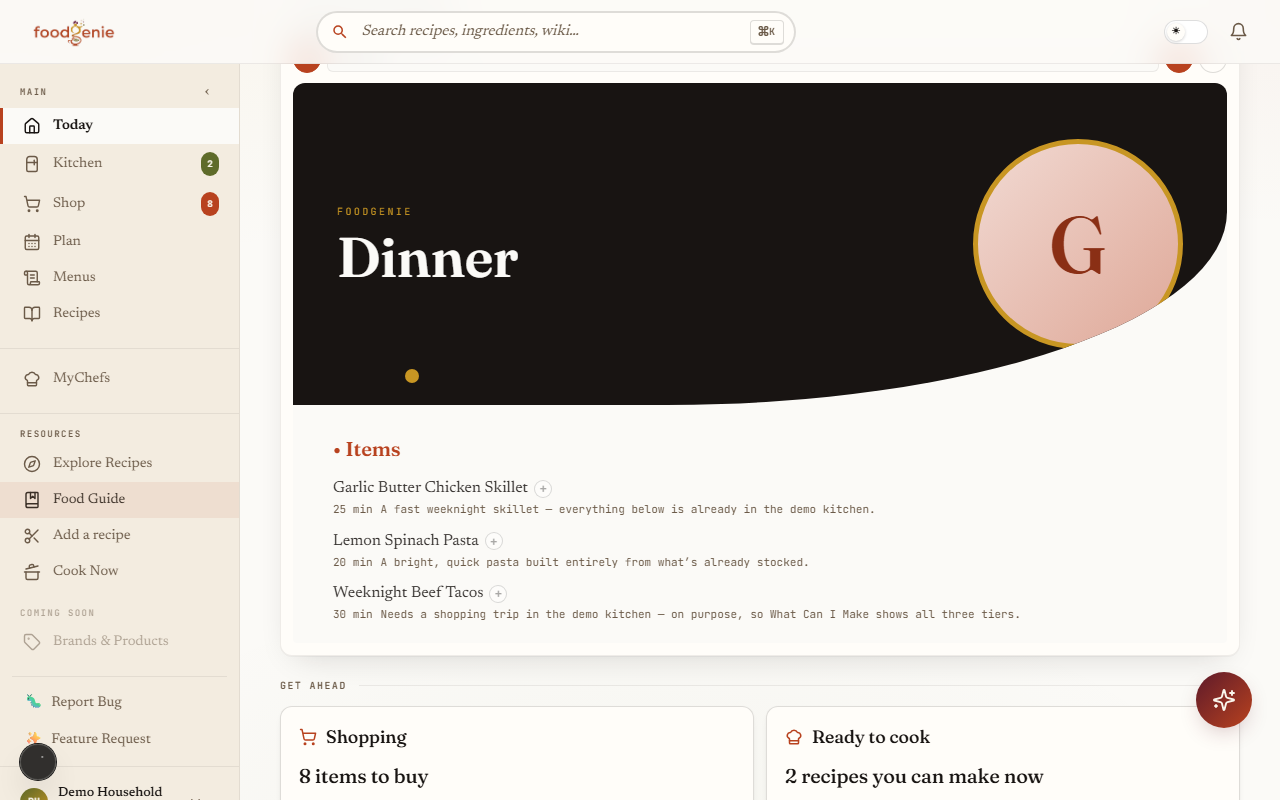
A design isn’t just for looking at, either. The same styled menu is what the planner shows in its side panel and what the dashboard shows under “Your menus” — and in both places you can add a dish straight off it into a meal. See Plan from your menus for how that works.
Was this page helpful?