
Shopping
How your list fills up from a plan, the views for shopping in the store, checking off and stocking your kitchen when you're done, and what connecting Kroger really gets you.
Building your list
Your list mostly fills itself from your Meal Planner. The planner’s primary “Build shopping list” button is kitchen-aware — it adds only what you’re actually missing, then tells you exactly what happened: how many items were added, how many you already had in your kitchen, and how many were already on your list. A second, less-used “Add all” action (tucked in the overflow menu) adds every planned recipe’s full ingredient list, kitchen stock or not.
You can also add straight to the list from any recipe page or from Cook Now, without going through the planner at all.
Departments & views
Four ways to look at the same list — switch anytime, your choice is remembered:
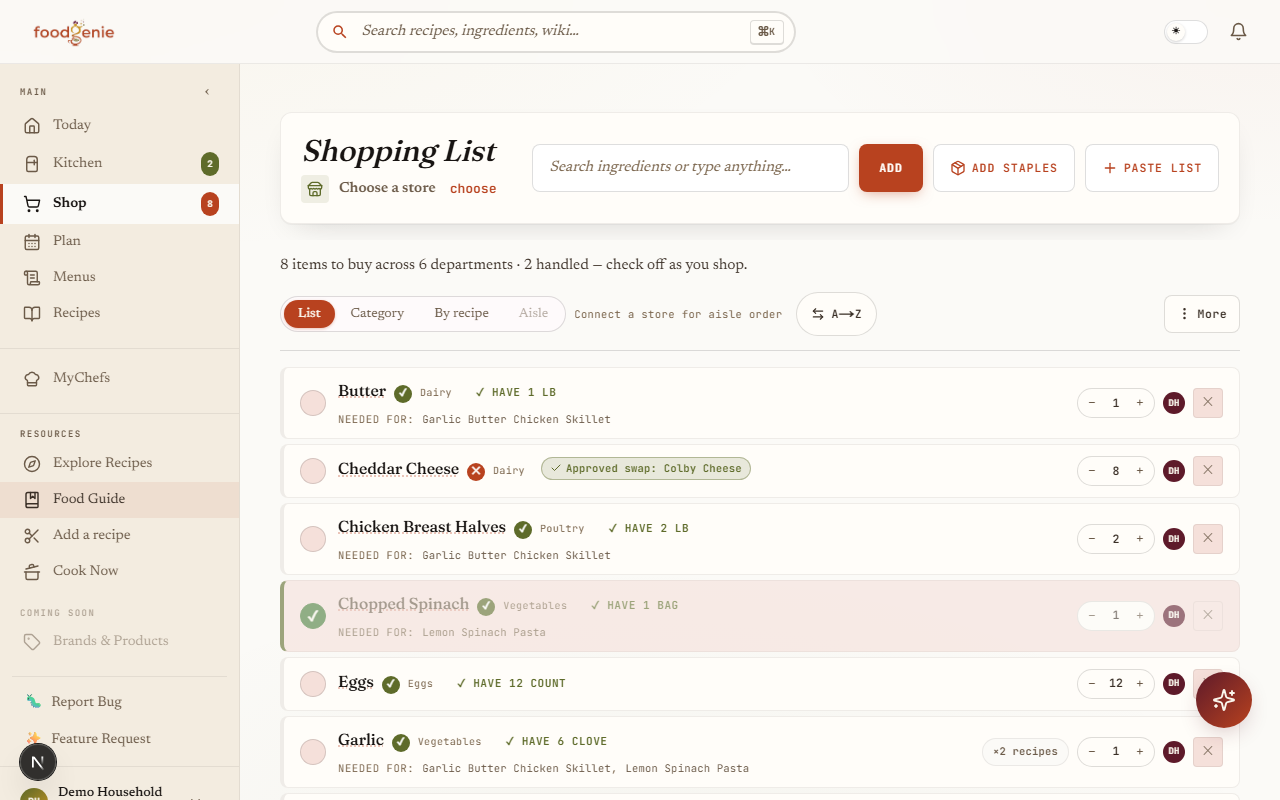
List
A flat, alphabetical list of everything — the default.Category
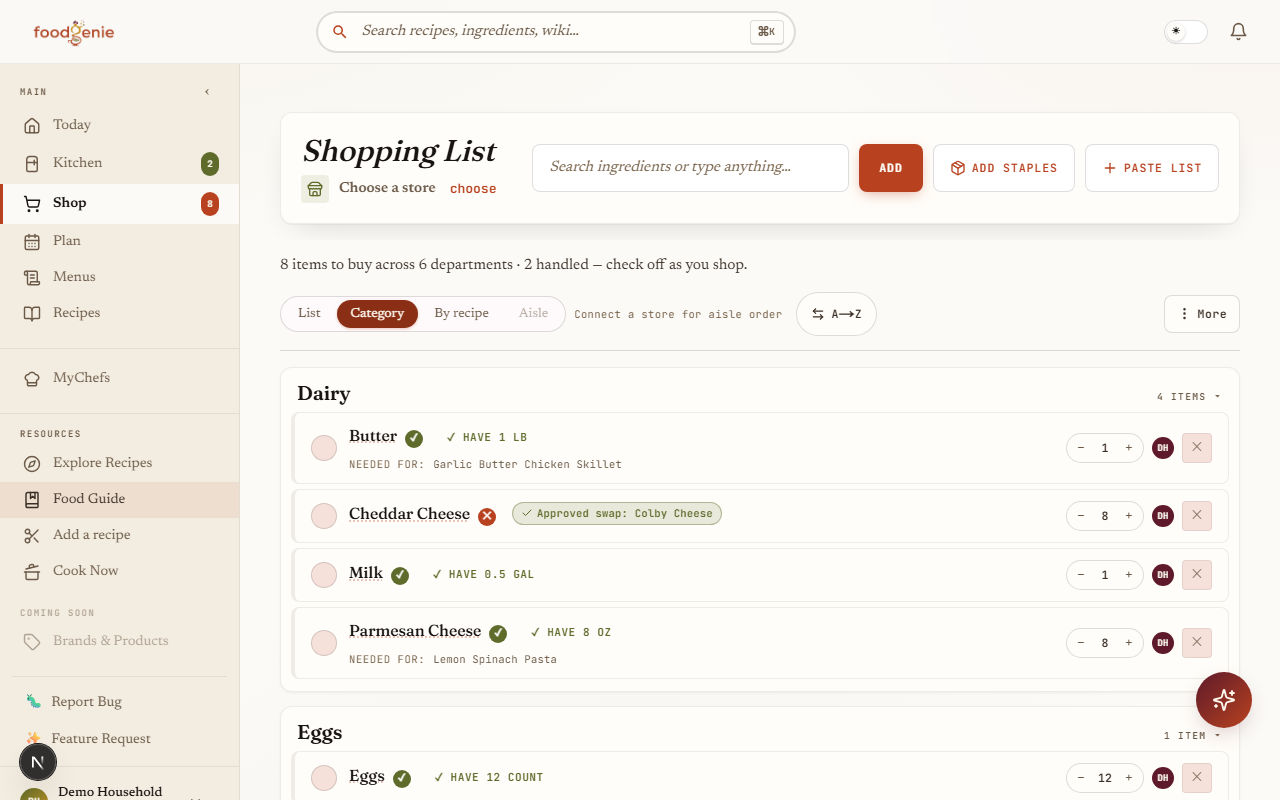
Grouped under department headers — Produce, Dairy, and so on.By recipe
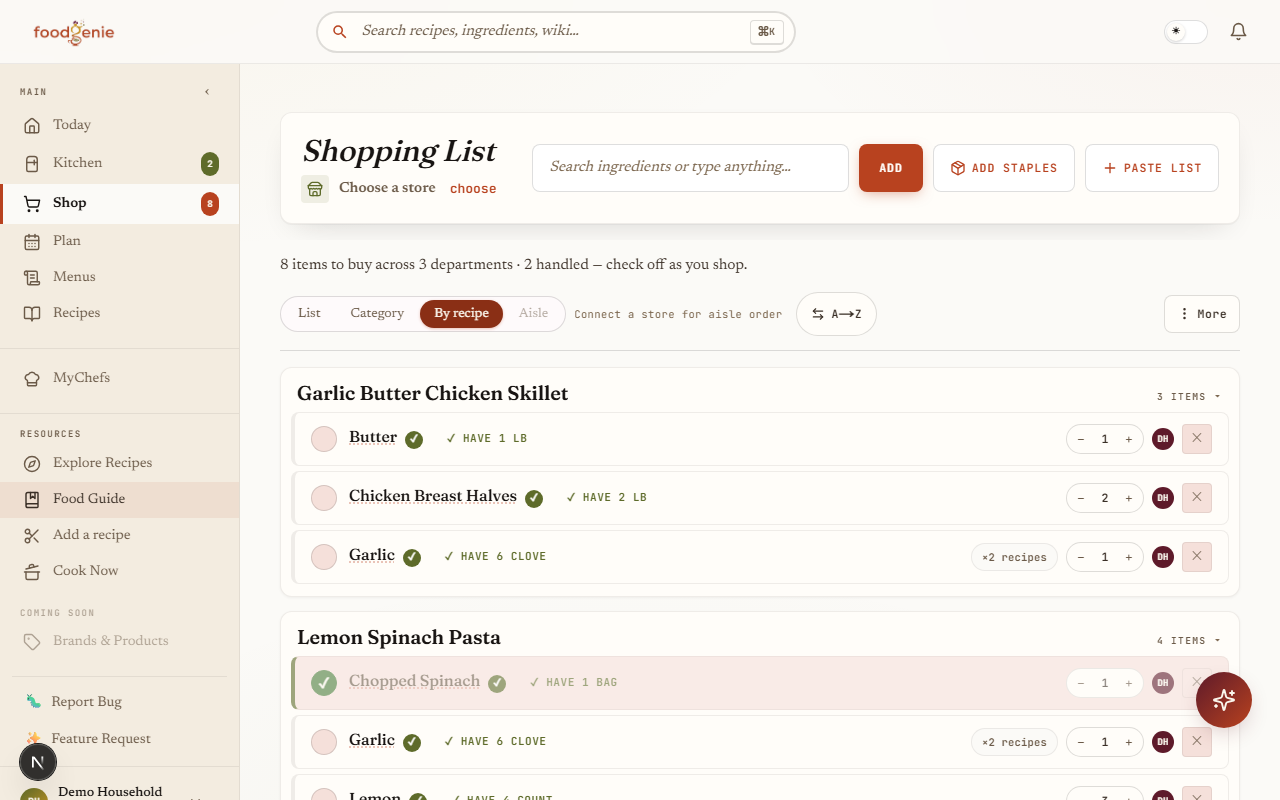
Grouped under the planned recipe each item is for — an item two recipes both need shows up under both. Staples and anything you added by hand land in a trailing “Manually added” group.{Store} aisle
Grouped by real aisle number, once a store is connected — display-only, never something FoodGenie writes or stores.
The default List view is one flat run of everything, alphabetical. The header line above it counts what’s left, how many departments it spans, and how many you’ve already handled.
Category is the one to shop from. Same items, grouped under the department each belongs to — Produce, Dairy and Eggs, Meat and Seafood, Pantry — with a count per group so you know when you’re done with an aisle. Departments aren’t typed in by hand: each item inherits one from where its food sits in the Food Guide.
By recipe answers a different question — why is this on my list? Every row sits under the planned recipe that needs it, so you can drop a whole meal from the trip in one glance. Something two recipes both need appears under both, tagged with how many recipes want it, because it’s one purchase either way. Staples and anything you typed in yourself land in a trailing Manually added group.
Checking off
Tap anywhere on an item to check it off — no separate checkbox to aim for. When the list is done, one sheet asks a single honest question: “Add N items to your kitchen?”
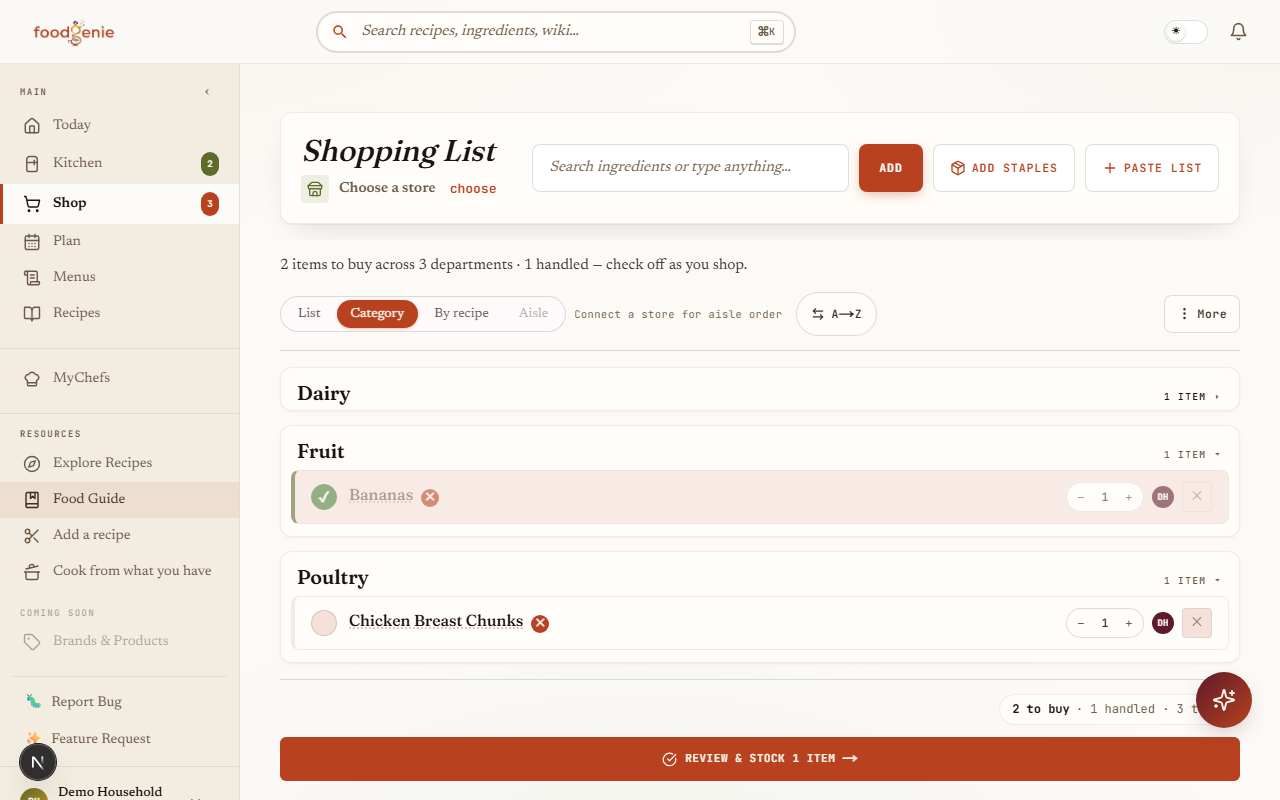
A department header collapses or expands with the same tap, so you can fold away aisles you’re done with as you go.
Add & archive list
Stocks your kitchen with a sensible default location and expiry per item, and clears the list — both in one step.Archive without adding
Clears the list without touching your kitchen inventory at all.
Staples
The same searchable staples picker from your Kitchen page works here too — tap the pantry basics you’re out of and each tap adds or removes it from your shopping list, one at a time.
Connecting Kroger
Look for “Connect Kroger” right on this page — not in Settings. Connecting is household-shared: once linked, everyone in your household sees “Kroger connected · linked by {name}.”
Prices, honestly
Every Kroger-derived price carries the same disclosure, word for word:
Here’s the honest part: a price on your list can be up to a full day old, not a minute. Kroger’s own terms would allow shorter-term caching, but FoodGenie is also bound by a daily limit on how many times it can ask Kroger for prices at all — so under the hood, a quote is held onto for up to 24 hours rather than re-fetched on every visit. Revisiting the page, or tapping the always-available “Refresh” button, re-checks things on your end, but can still hand you back that same day-old number instead of a truly live one.
What you can still trust: the disclosure above, shown verbatim on every surface that shows a Kroger price, and relative comparisons — if something reads cheaper than a store-brand alternative today, that comparison still holds even if the exact cents have drifted since. For a number that’s accurate to the minute, the final word is always Kroger’s own checkout.
If a cheaper store-brand match exists for something on your list, “Save on your list” totals up the potential savings and lets you swap one item or all of them. How eagerly FoodGenie offers those swaps — always take the cheapest, ask you each time, or let you choose manually — is a separate setting, in Settings → Shopping-list display, not on this page.
Was this page helpful?