
MyKitchen
Every way to tell FoodGenie what’s in your kitchen, how expiry dates get estimated and fixed, what happens after you cook, and how food about to expire finds its way onto your plan.
Quick add
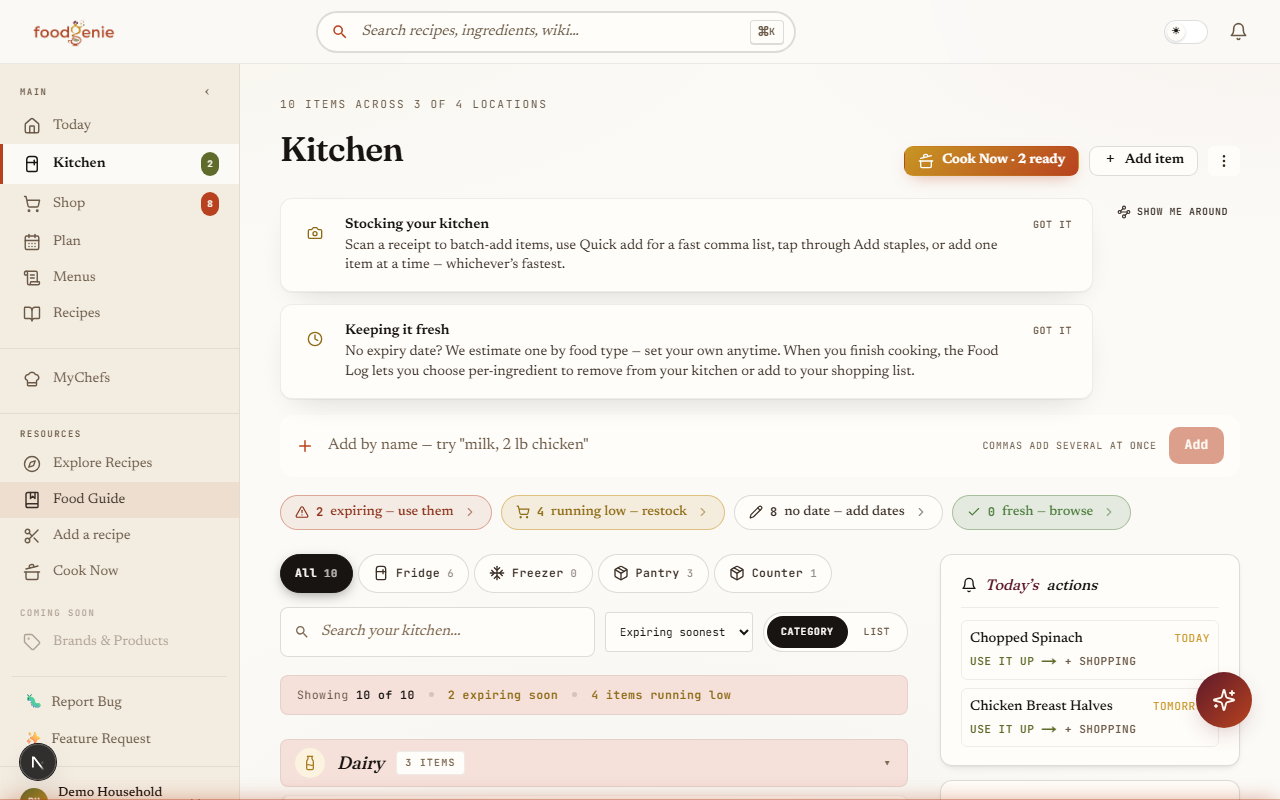
The fastest way to stock your kitchen is the always-visible text bar at the top of the Kitchen page. Type a comma list — “milk, 2 lb chicken, 3 eggs” — and every part becomes its own inventory row in one submit. Already have that item? Quick add bumps its quantity instead of creating a duplicate.
Staples
For stocking many items at once, the staples picker offers a searchable list of common pantry ingredients — up to 500, ranked by how commonly they’re used, sorted Popular or A-Z. Tap the ones you have and add them all in a single batch. Open it from the “More kitchen actions” menu (the ⋮ button at the top of the Kitchen page) → “Add staples.”
Receipt scan
Photograph or upload a grocery receipt and FoodGenie reads each line, guesses a storage location and expiry date for it, and hands you a review screen before anything is added — one commit stocks your kitchen and checks off the matching items on your shopping list at the same time. Open it from the “More kitchen actions” menu (the ⋮ button at the top of the Kitchen page) → “Scan a receipt.”
The same menu also has “Kitchen check” — a short, guided sweep through your existing inventory (confirm what’s still around, clear out what’s gone) when you’d rather audit than add.
Expiry estimates
Add an item without picking a date and FoodGenie fills one in for you, based on the kind of food it is — milk gets a short shelf life, salt gets a long one. It’s a starting guess, not a food-safety verdict.
Correct one item
Every item’s expiry date is a plain, editable date field — change it anytime from the add or edit screen.Correct several at once
Quick chips — Today, 3 days, 1 week, 2 weeks, 1 month — or a custom date, for setting dates on a batch of items in one pass.
The Food Log, on cook-confirm
Mark a planned meal as cooked and FoodGenie asks what to do with each ingredient it used — per item, not all-or-nothing:
Remove
Take it off your kitchen inventory — you used what you had.Add to shopping
Put it on your shopping list — you’re out and need more.Both
Remove it from inventory and add it to your shopping list.
Skip an ingredient and nothing happens to it — the Food Log never changes an item you didn’t make a choice on.
Use it up
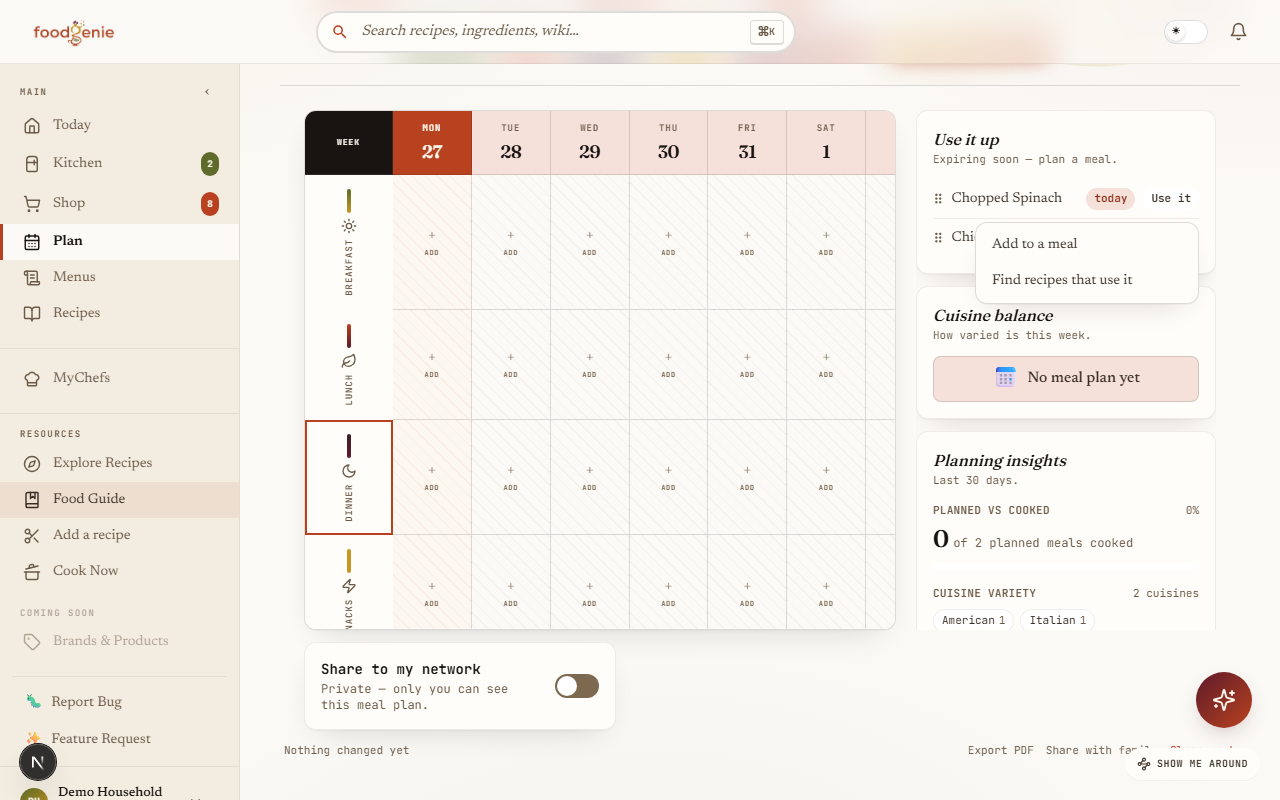
Food about to expire gets an actionable “Use it” button, not just a warning. Tap it on anything you can eat as-is and a small menu offers two real next steps:
Add to a meal
Drops it straight onto an open slot in your Meal Planner.Find recipes that use it
Jumps to Explore, filtered to recipes built around that exact ingredient.
Was this page helpful?